How to get beautiful PowerShell with Git Branches
No more boring PowerShell instead use Windows Terminal(WT), posh-git and oh-my-posh
M
I am a developer from Vadodara, Gujarat.
Search for a command to run...
No more boring PowerShell instead use Windows Terminal(WT), posh-git and oh-my-posh
I really enjoyed the whole article and also it was very informative.... Your blogging site looks great although response time is little slow but I understand this is not paid server .. but ya I am really moved how far you have came from last we met .. XD Keep it up dude ✌️
Thanks for the review of the blog. This is a platform provided By Hashnode and not made by me. It's a platform where developers write blogs and it's for free, so what are you up to start sharing what you have.
Overview: This article explains what BIOS and UEFI are, how the boot process works, where they differ (boot, security, performance, storage), and practical guidance for checking, troubleshooting, and
Why this topic still matters RAID has been around for decades, but it is still one of the most practical storage design decisions you will make in real infrastructure. Whether you are planning a small

Jenkins Pipelines for angular with git lab hosted over VPS

BOOT SECTOR VIRUS : CAUSES, IMPLICATIONS & DETECTION
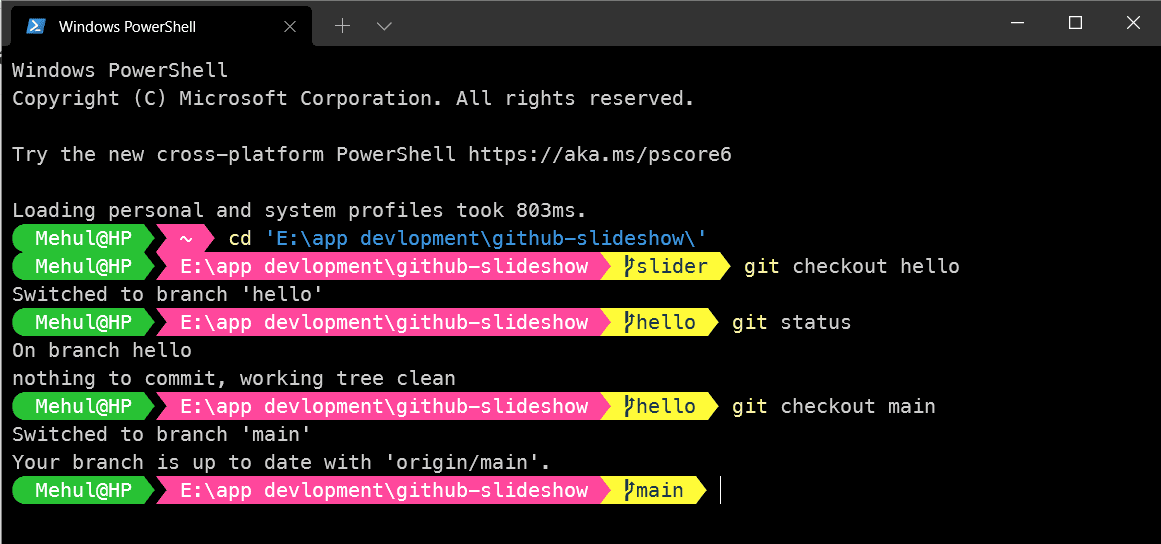
As developers we tend to use Git, to be more specific Git CLI. Natively PowerShell doesn't show much information e.g. which branch we are working on. Using some modules and a terminal we can get different themes for our PowerShell.
Windows Terminal is a terminal application with shells like Command Prompt, PowerShell, and WSL all in one application. Its main features include multiple tabs, panes, custom themes, styles, and configurations.
Windows Terminal
oh-my-posh (for PowerShell theme)
posh-git (for git autocompletion, branch name,...)
Powerline Fonts (Nerd Font Recommended or Cascadia PL)
git-bash (assumed to be already installed)
Install Windows Terminal
Install Powerline Fonts
Install Required Modules
Add modules and desired theme to profile
Configure PowerShell to run scripts
Add font family in JSON file of terminal
Go to Microsoft Store and install Windows Terminal.
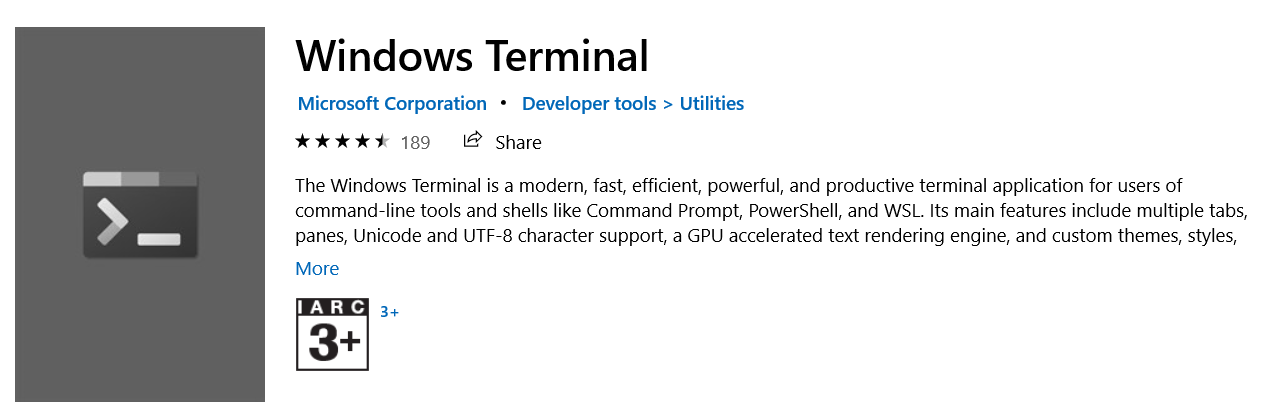
After installing it will appear in the start menu as well.
TIP: Windows Terminal can be opened from a run using wt like cmd
Any Nerd Font will work with the standard themes of Oh My Posh, but recommended is MesloLGM Font.
Cascadia Font is also compatible but some glyphs are not supported yet you need to patch with custom Unicode manually.

NOTE: Install font for all users by right-clicking and install for all users
You may install these using Terminal itself
Install-Module posh-git -Scope CurrentUser
Install-Module oh-my-posh -Scope CurrentUser
You need to press A in PowerShell while installation of both modules to install from the repository. See the image below 👇

notepad $PROFILE
If there is no file profile file, then a dialog box will be prompted to create one, hit yes.
Now inside PowerShell_profile.ps1 file which is currently opened, add the following lines👇
Import-Module posh-git
Import-Module oh-my-posh
Set-PoshPrompt -Theme paradox
You can change the theme later on as you want, the cover photo is using aliens theme.
We need to change the execution policy so that we can run our profile script(the one created in the above step).
To change execution policy open new PowerShell window as administrator.
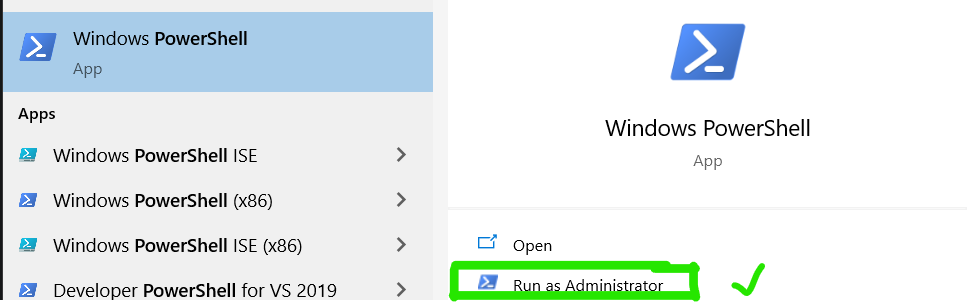
There will be some errors when you open a new PowerShell window, that is due to restricted execution policy but after executing the below step it won't appear next time.
Set-ExecutionPolicy Unrestricted
Open Settings of Terminal. From the Dropdown menu adjacent to the + button.
Or Use ctrl + , as a shortcut to open settings of terminal.
Now click on the bottom left button labeled as Open JSON File.
On clicking the button JSON file would be opened in the desired editor, if VS Code is available then it would be opened in that else another editor would be chosen.
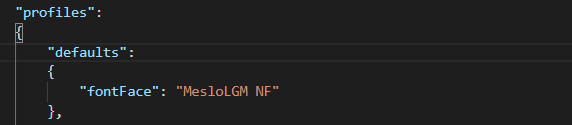
Now add Font Family by Adding the below code in the default section of the JSON file.👇
"fontFace": "MesloLGM NF"
Note: You must add the above code in the default section only. Don't alter the other code written, we will discuss customizing WT using JSON later in detail, in another blog.

To check all available themes head over to Oh-My-Posh | Themes
You may check-in PowerShell as well using :
Get-PoshThemes
notepad $profile and change the theme by changing the old theme to the new one.You can also try theme by temporarily changing theme in PowerShell Using
Set-PoshPrompt -Theme <themename>for e.g.Set-PoshPrompt -Theme mt