BIOS vs UEFI Explained: A Complete Guide to Boot, Security, and Performance
M
I am a developer from Vadodara, Gujarat.
Search for a command to run...
No comments yet. Be the first to comment.
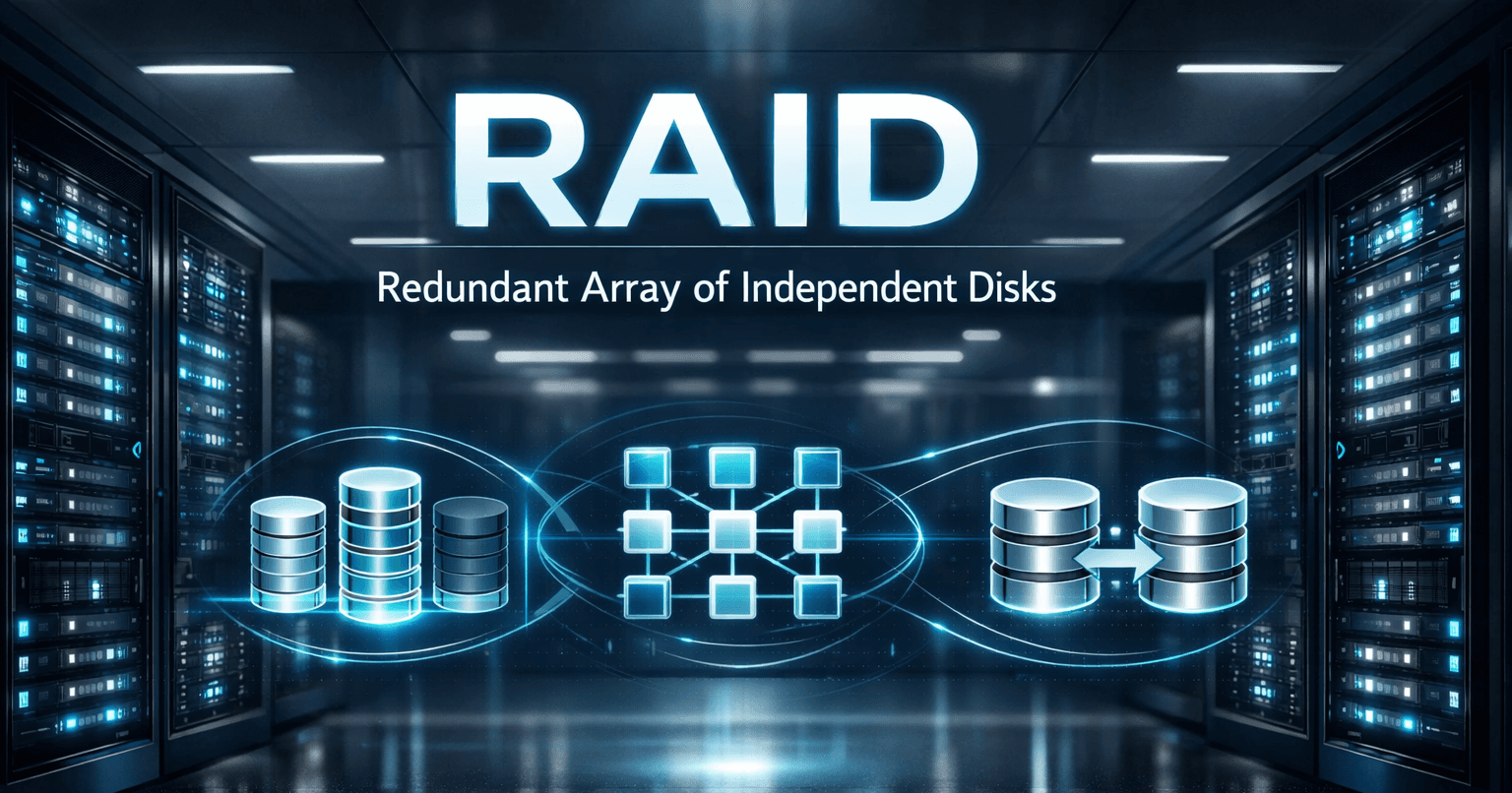
Why this topic still matters RAID has been around for decades, but it is still one of the most practical storage design decisions you will make in real infrastructure. Whether you are planning a small
Jenkins Pipelines for angular with git lab hosted over VPS

BOOT SECTOR VIRUS : CAUSES, IMPLICATIONS & DETECTION
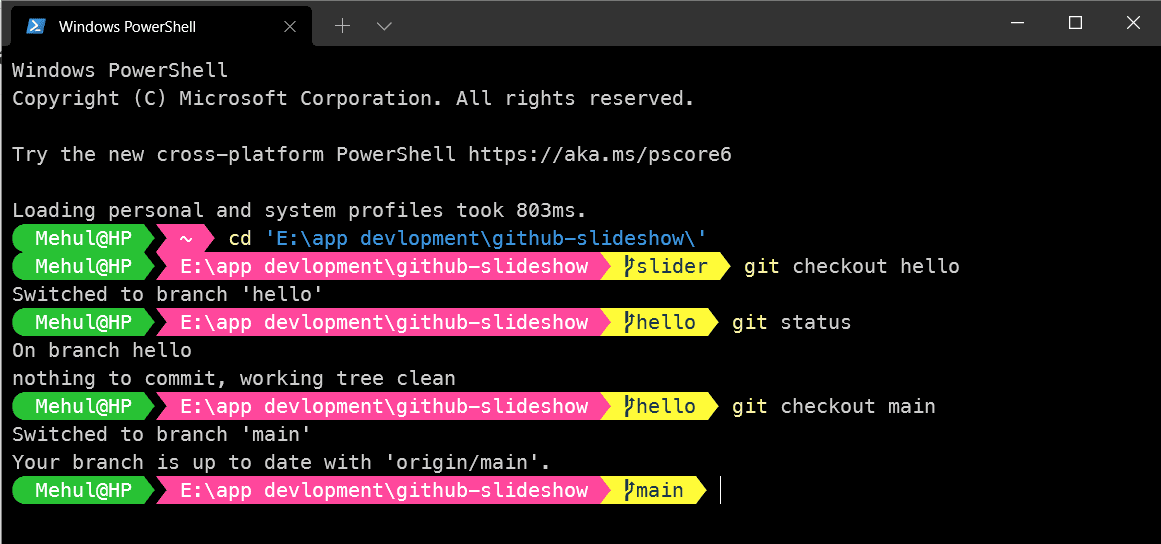
No more boring PowerShell instead use Windows Terminal(WT), posh-git and oh-my-posh
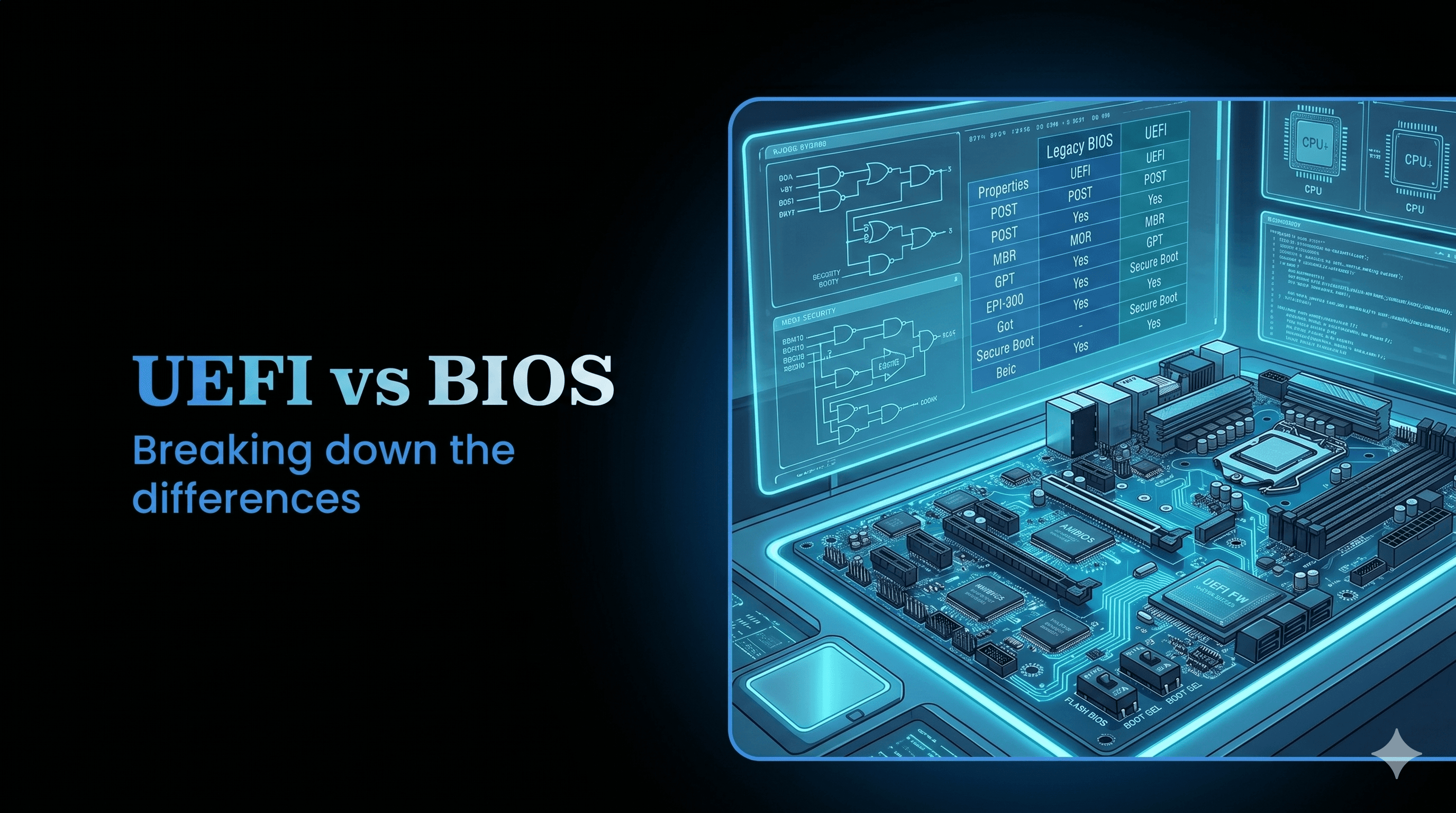
Overview: This article explains what BIOS and UEFI are, how the boot process works, where they differ (boot, security, performance, storage), and practical guidance for checking, troubleshooting, and migrating between them. Callouts, code blocks, and example commands are included where helpful.
Every PC starts with firmware that initializes hardware, runs basic checks, and then hands control to an operating system. For decades that firmware was the legacy BIOS; today UEFI is the modern standard on most new systems.
Key point: Both BIOS and UEFI perform the same high-level job (start the hardware and load an OS), but UEFI offers modern features: GPT support, Secure Boot, richer drivers, faster initialization in many implementations, and better extensibility.

Pro tip: If a machine fails early in boot (no bootloader loaded), the problem is usually firmware, disk/partitioning, or bootloader configuration — not the OS itself.
Origin: IBM PC era (1980s).
Mode: 16-bit real-mode code paths; firmware stored in ROM/NVRAM.
Partitioning: typically uses MBR (Master Boot Record) — limits to ~2 TiB and 4 primary partitions (workarounds exist).
Bootloader location: MBR contains boot code that loads a bootloader from disk sectors.
Extensibility: limited; drivers are not part of firmware (device support is minimal).
Compatibility: many older OSes and tools require BIOS/MBR.
CSM: modern UEFI firmwares often include a Compatibility Support Module (CSM) to emulate BIOS behavior for legacy OSes.
Warning: MBR disk limits mean BIOS+MBR can be a problem for large drives or modern storage setups.

Modern firmware specification that replaces BIOS; supports 64-bit runtime services and modular drivers.
Partitioning: typically uses GPT (GUID Partition Table) — supports disks far larger than 2 TiB and many partitions.
Bootloader location: UEFI loads .efi applications from the EFI System Partition (ESP) (FAT32). Boot entries are stored in NVRAM (BootOrder, Boot####).
Features: Secure Boot, signed bootloaders, richer device/network drivers, shell, HTTP/Network boot (UEFI HTTP boot), runtime variables.
Extensibility: can include drivers and runtime services; boot can be parallelized for faster startup.
Compatibility: can run CSM to boot legacy OSes, but that may reduce UEFI features (like Secure Boot).
Note: UEFI + GPT is the recommended setup for modern Windows/Linux installations.


Partition table: MBR (BIOS) vs GPT (UEFI)
Disk limits: ~2 TiB (MBR) vs effectively very large (GPT)
Boot files: MBR boot sectors vs EFI files in ESP (e.g., \EFI\Microsoft\Boot\bootmgfw.efi)
Security: Secure Boot supported by UEFI (verifies signatures) vs none in BIOS
Firmware APIs: UEFI exposes richer runtime APIs to OS
Extensibility: UEFI supports firmware drivers and modular apps
Windows:
Open System Information: run msinfo32 and check the field "BIOS Mode" (shows "UEFI" or "Legacy").
PowerShell (modern):
(Get-ComputerInfo).FirmwareType
# Output: UEFI or BIOS
Linux:
Check for an EFI firmware directory:
if [ -d /sys/firmware/efi ]; then
  echo "UEFI boot"
else
  echo "BIOS (legacy) boot"
fi
You can also use efibootmgr (only meaningful if /sys/firmware/efi exists):
sudo efibootmgr -v
UEFI NVRAM entries on Linux:
sudo efibootmgr -v
# shows BootOrder and Boot#### entries pointing to .efi files in the ESP
UEFI firmware initializes hardware.
Firmware reads NVRAM BootOrder and the EFI System Partition (ESP).
Firmware loads the chosen .efi (PE/COFF) bootloader (e.g., Windows Boot Manager or GRUB EFI).
Bootloader verifies/passes control to OS kernel (Secure Boot may verify signatures first).
OS loads and UEFI runtime services may stay available.
Secure Boot is a UEFI feature that verifies bootloader and kernel signatures against a set of trusted keys (stored in firmware).
Purpose: prevent unsigned/malicious boot components (rootkits) from executing before OS loads.
How it works:
Firmware holds a platform key (PK), key exchange keys (KEK), and allowed signatures (db).
Bootloader/kernel signed by trusted CA or enrolled key are allowed.
Typical workflow for Linux on Secure Boot: use a signed shim (signed by Microsoft) which then validates GRUB or kernel signatures.
Note: Secure Boot can be enabled, disabled, or configured through the firmware settings. For dual-boot or custom kernels, you may need to sign binaries or enroll keys.
Important: Back up your disk before converting partition schemes or changing firmware modes. Conversion can make a system unbootable without the correct firmware/bootloader changes.
Windows (recommended approach if running Windows 10/11):
mbr2gpt.exe is built into Windows (since Creators Update / 1703).
Validate then convert:
# validate
mbr2gpt.exe /validate /disk:0 /allowFullOS

# convert (if validation passes)
mbr2gpt.exe /convert /disk:0 /allowFullOS
After conversion, enable UEFI firmware boot mode and update boot order. Windows will create an EFI System Partition and install boot files.
If converting a disk containing the running OS, follow Microsoft's guidance and ensure firmware is set to UEFI.
Linux:
Tools: gdisk (gdisk replaces fdisk for GPT), sgdisk, parted.
Method (example with gdisk):
sudo gdisk /dev/sda
# inside gdisk:
#   r  (recovery & transformation)
#   g  (convert MBR to GPT)
#   w  (write changes and exit)
After conversion create/mount an EFI System Partition (FAT32, type EF00) and install an EFI-capable bootloader:
sudo mkfs.fat -F32 /dev/sda1    # example: sda1 = ESP
sudo mount /dev/sda1 /boot/efi
sudo grub-install --target=x86_64-efi --efi-directory=/boot/efi --bootloader-id=GRUB
sudo grub-mkconfig -o /boot/grub/grub.cfg
Another approach: backup data, re-partition as GPT, reinstall OS — the safest method.
Caution: Converting a disk that holds legacy-only OSes (older Windows versions, some special boot setups) may break bootability. Always verify firmware supports UEFI and you know how to restore.
Common scenarios and commands:
Windows: recreate EFI boot files
# Assign a letter to the EFI partition (e.g., S:)
diskpart
# inside diskpart:
# list disk
# sel disk 0
# list vol
# sel vol <number-of-ESP>
# assign letter=S
# exit

# Then:
bcdboot C:\Windows /s S: /f UEFI
Linux: reinstall GRUB-EFI
sudo mount /dev/sdaX /boot/efi   # X = EFI partition
sudo grub-install --target=x86_64-efi --efi-directory=/boot/efi --bootloader-id=GRUB
sudo update-grub
If NVRAM boot entries are missing, use efibootmgr to recreate them:
sudo efibootmgr -c -d /dev/sda -p 1 -L "GRUB" -l '\EFI\GRUB\grubx64.efi'
UEFI can parallelize device initialization and supports richer drivers in firmware, which often reduces boot time.
Differences in boot time depend heavily on firmware implementation, number of devices, and OS boot configuration.
In many modern systems UEFI + fast SSD yields quicker boot than legacy BIOS, but real-world improvement varies.
Note: Boot speed gains are real but not guaranteed; disabling unnecessary devices, enabling fast/quick boot options, and optimizing OS boot chain frequently deliver larger gains than firmware alone.
Stay with BIOS (Legacy) if:
You need to boot an old OS that doesn't support UEFI.
Specific hardware/firmware only works reliably in legacy mode.
Prefer UEFI if:
You have disks larger than 2 TiB or use GPT features.
You want Secure Boot protection.
You're installing a modern OS (current Windows/Linux distributions support UEFI well).
If system won’t boot after switching to UEFI:
Verify firmware is set to UEFI mode (disable CSM if expecting pure UEFI).
Confirm an EFI System Partition (ESP) exists and contains the correct .efi files.
Use recovery tools (Windows WinRE for bcdboot, Linux live USB to mount ESP and reinstall bootloader).
If Secure Boot blocks a bootloader:
If disk is not recognized as bootable:
Q: Can UEFI boot MBR disks?
A: UEFI expects GPT by default for native boot, but many firmwares have CSM that can boot MBR. Relying on CSM reduces UEFI features.
Q: Is switching from BIOS to UEFI risky?
A: Changing partition table/boot mode can render the system unbootable without proper steps. Back up before converting.
Q: Does UEFI improve security?
A: Yes — Secure Boot prevents unsigned boot components from running. But Secure Boot must be correctly configured and combined with good OS-level security.
Q: Will enabling Secure Boot break Linux?
A: It can if your bootloader/kernels aren't signed or a shim is not used. Most major Linux distributions support Secure Boot via shim.
For new installs: use UEFI + GPT and enable Secure Boot (unless you have a specific reason not to).
For existing systems: convert only after backing up and confirming firmware and OS support.
Keep firmware updated: vendors release bugfixes and improvements for UEFI/BIOS that affect stability and security.
Summary callout: UEFI is the modern, feature-rich replacement for legacy BIOS. It brings better disk support, improved security primitives, and often faster boots — but converting requires careful steps and backups.
If you want, I can:
Reformat this article to a blog-ready layout (short intro, key takeaways, numbered steps).
Produce a step-by-step migration guide specific to your OS (Windows 10/11 or a particular Linux distro).
Generate visuals/ASCII diagrams for the boot flow or sample EFI partition layouts.